Connecting to Data
EzuneDB speaks PostgreSQL, MySQL, MariaDB, SQLite, SQL Server, and ClickHouse — with unlimited connections, all stored locally.

The Connections view — a green dot marks live connections
1Add a connection
Open Connections and click Add. Give the connection a name, pick the database type, and fill in host, port, database, and credentials. Credentials are stored locally on your machine — never in any cloud.
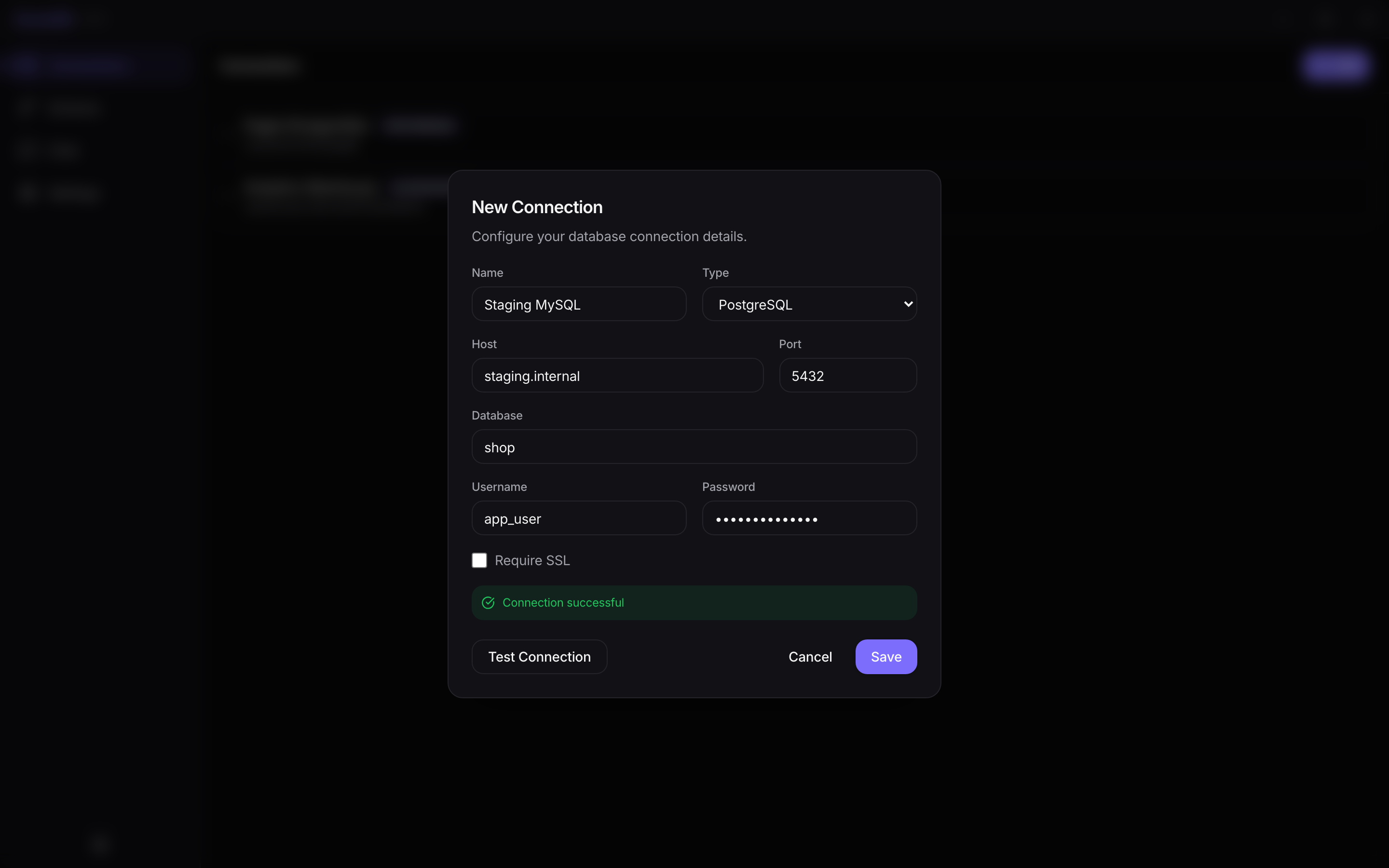
Adding a database: fill the form, test, save — done
2Test before you save
Test Connection verifies connectivity with your details before anything is stored, so typos surface immediately instead of at query time. A green "Connection successful" banner means you are good to go.
3Connect and disconnect
Saved connections appear in the list. Hover a row for its actions: the plug icon connects, and once connected (green dot) the database becomes available in Chat and Schema. Disconnect any time with the unplug icon — edits and deletions live behind the pencil and trash icons.
💡 Pro Tip
Connecting to SQLite? Just point the database field at the file path — no host, port, or credentials needed.