Working with Queries
EzuneDB turns plain-English questions into SQL you can read, run, and trust. This guide walks through the full ask-review-run loop.
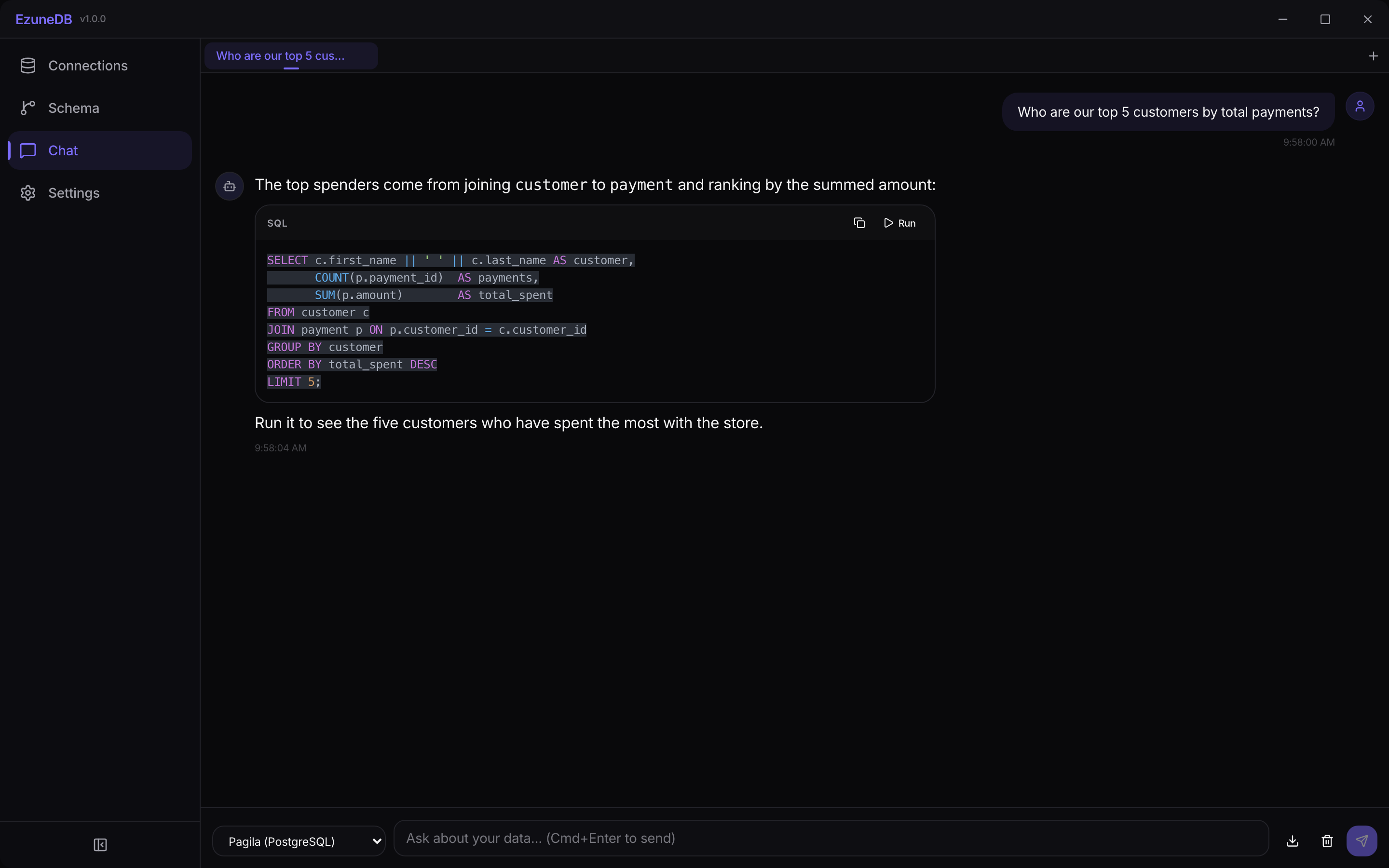
Ask in English — get SQL you can inspect before anything runs
1Ask in plain English
Open a chat tab, pick a connected database in the selector at the bottom, and type your question the way you would ask a colleague. Press Cmd/Ctrl+Enter or hit the send button.
- Be specific: "top 5 customers by total payments" beats "best customers"
- Mention time ranges when they matter ("in the last 30 days")
- Reference table or column names if you know them — the AI sees your schema
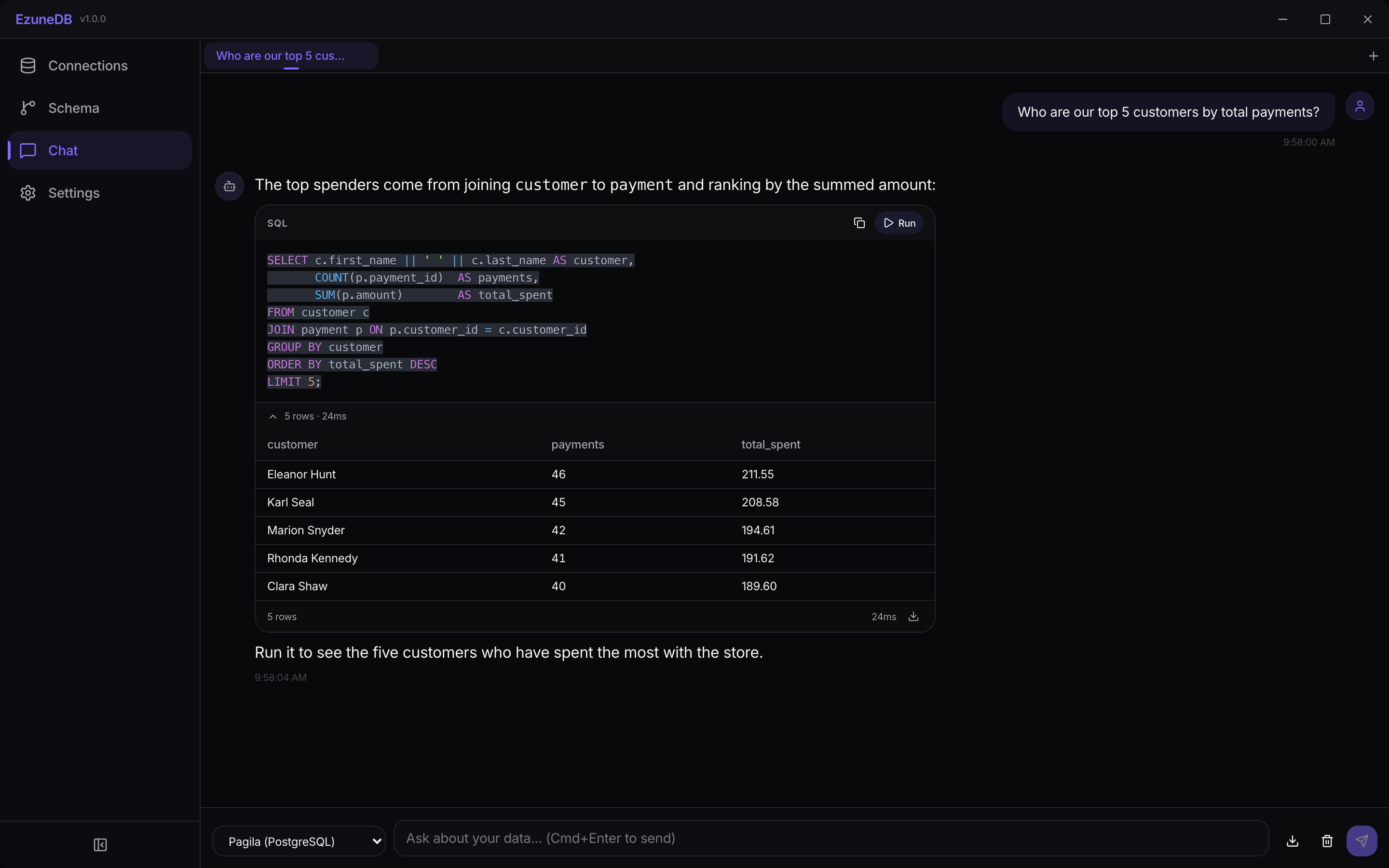
The full loop: ask a question, review the SQL, run it, read the results
2Review the SQL before it runs
Every answer shows the generated SQL in a dedicated block with an explanation of how it works. Nothing executes until you click Run — and your query policy (chosen during onboarding) decides whether writes and schema changes run automatically, ask for confirmation, or are blocked entirely.
💡 Pro Tip
The AI reads your schema, not your data. Queries only touch the database when you run them, and read-only profiles can never modify anything.
3Run it and read the results
Click Run on any SQL block to execute it against your connection. Results appear right under the query with row count and execution time, in a fast virtualized table that handles large result sets.
4When something goes wrong
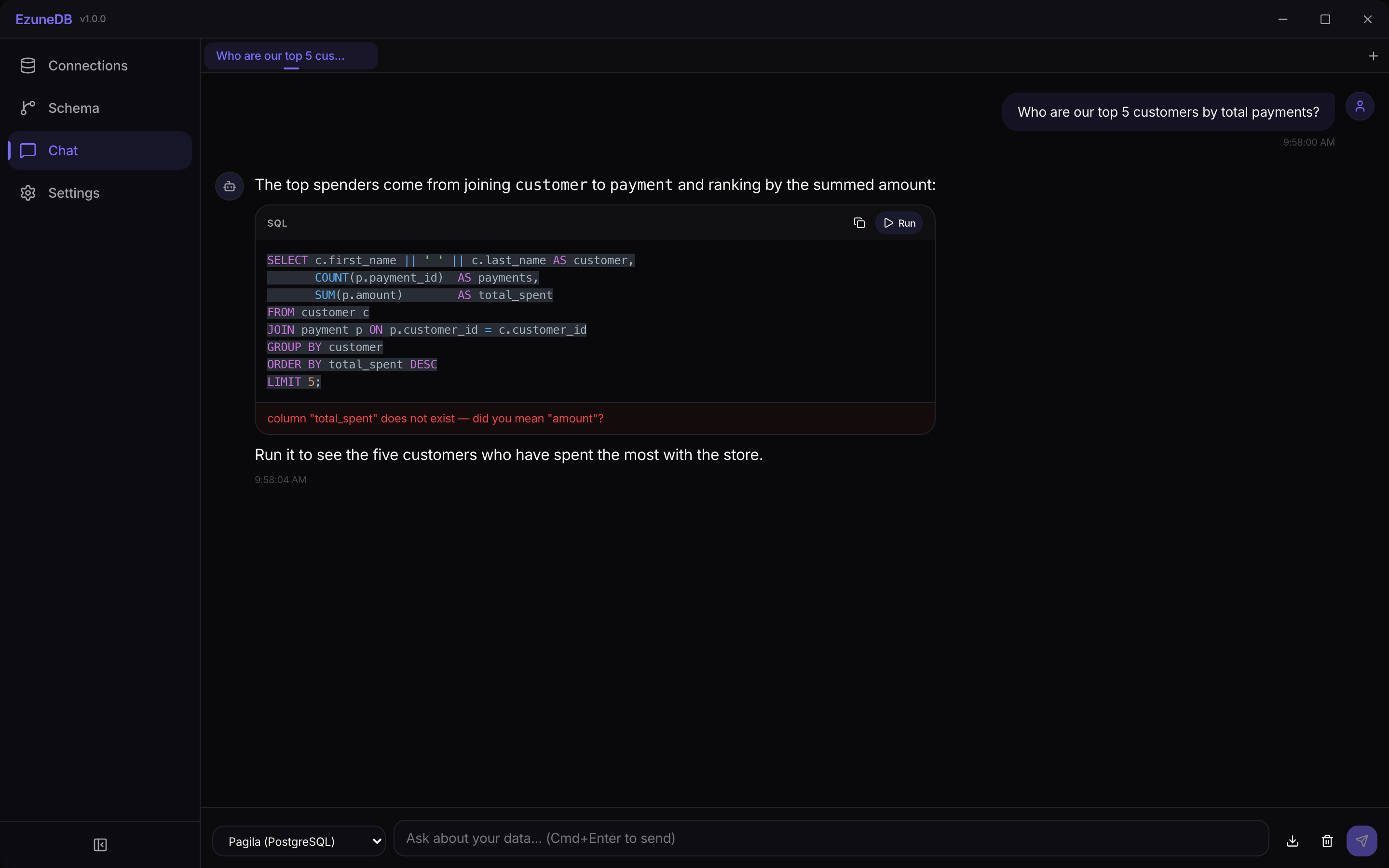
If the database rejects a query, the error appears inline — right where the results would have been. Ask a follow-up question in the same chat and the AI will correct the SQL with the error in context.